
Sensors Overview
The Sensors page in LOCUS helps you find sensors, check their latest measurements, and open detailed information. The sensors you can see depend on your account permissions and access to Home Sites.
- Sign in to LOCUS.
- Select Sensors from the left navigation menu.
- Find the sensor you need in the list, or select its row to open the Details page.
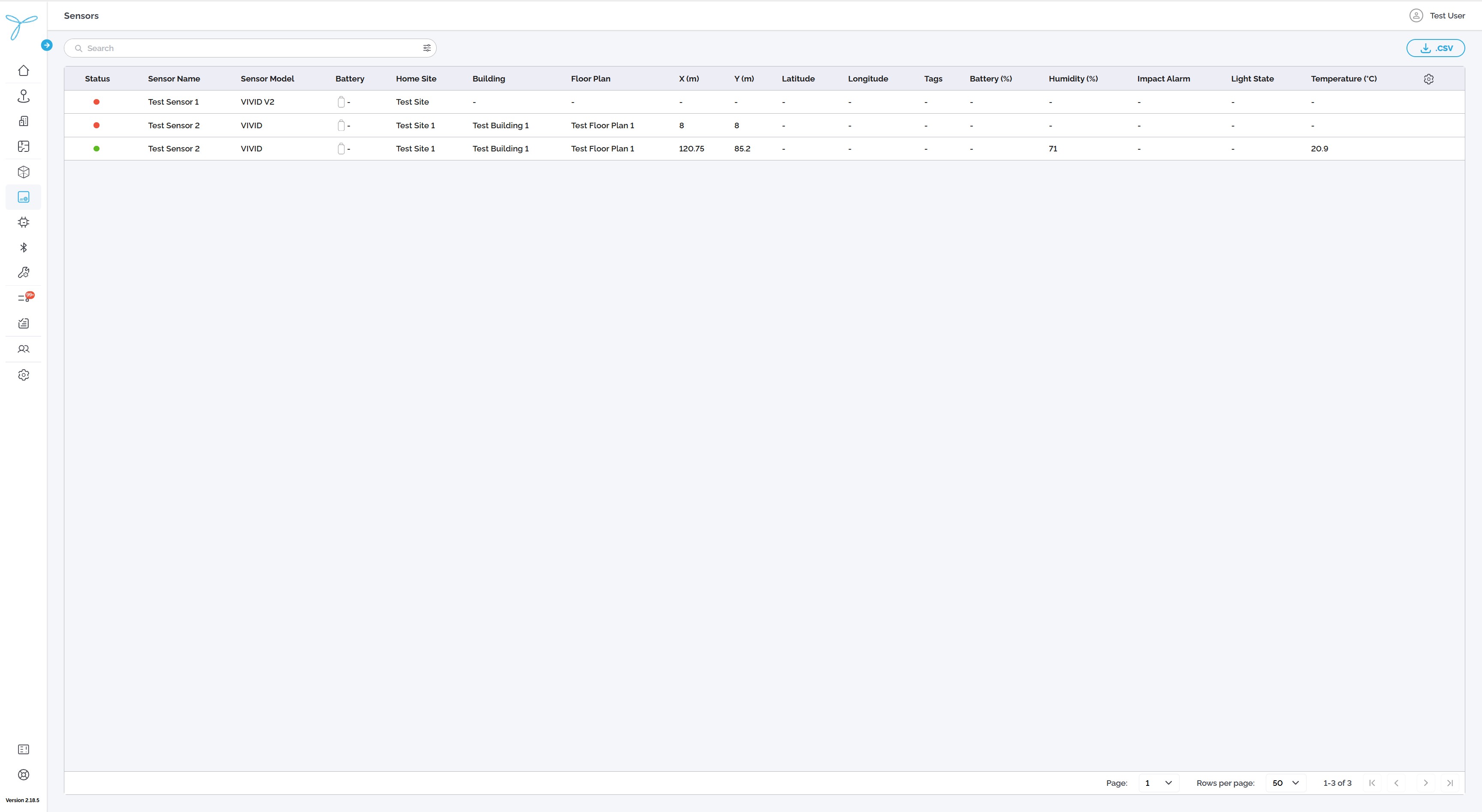
- Enter a sensor name or another supported term in Search.
- Use the filter control to narrow the results, if needed.
- Select a sensor row to open its Details page.
By default, the newest sensor records appear first, sorted by Create Date.
| Column | What it shows |
|---|---|
| Status | Sensor status indicator. |
| Sensor Name | Name of the sensor. |
| Sensor Model | Sensor model. |
| Battery | Battery information, if available. |
| Home Site | Home Site assigned to the sensor. |
| Building / Floor Plan | Indoor location, if assigned. |
| X (m), Y (m) | Indoor coordinates in meters. |
| Latitude / Longitude | Outdoor coordinates, if available. |
| Tags | Labels assigned to the sensor. |
The list may also include the latest available measurements, such as Temperature (°C), Humidity (%), or Light State. Available parameters depend on the sensor model and version. A dash (-) indicates that a value is unavailable; it does not necessarily mean the sensor is offline.
Values associated with a Threshold Breach event may be highlighted.
- Click the Settings (gear) icon in the table header.
- In Table preferences, open General to choose sensor information columns.
- Open Parameters to choose measurement columns. Use the search field to find a parameter if needed.
- Select or clear the relevant checkboxes.
- Click Save to apply your changes, or Cancel to discard them.
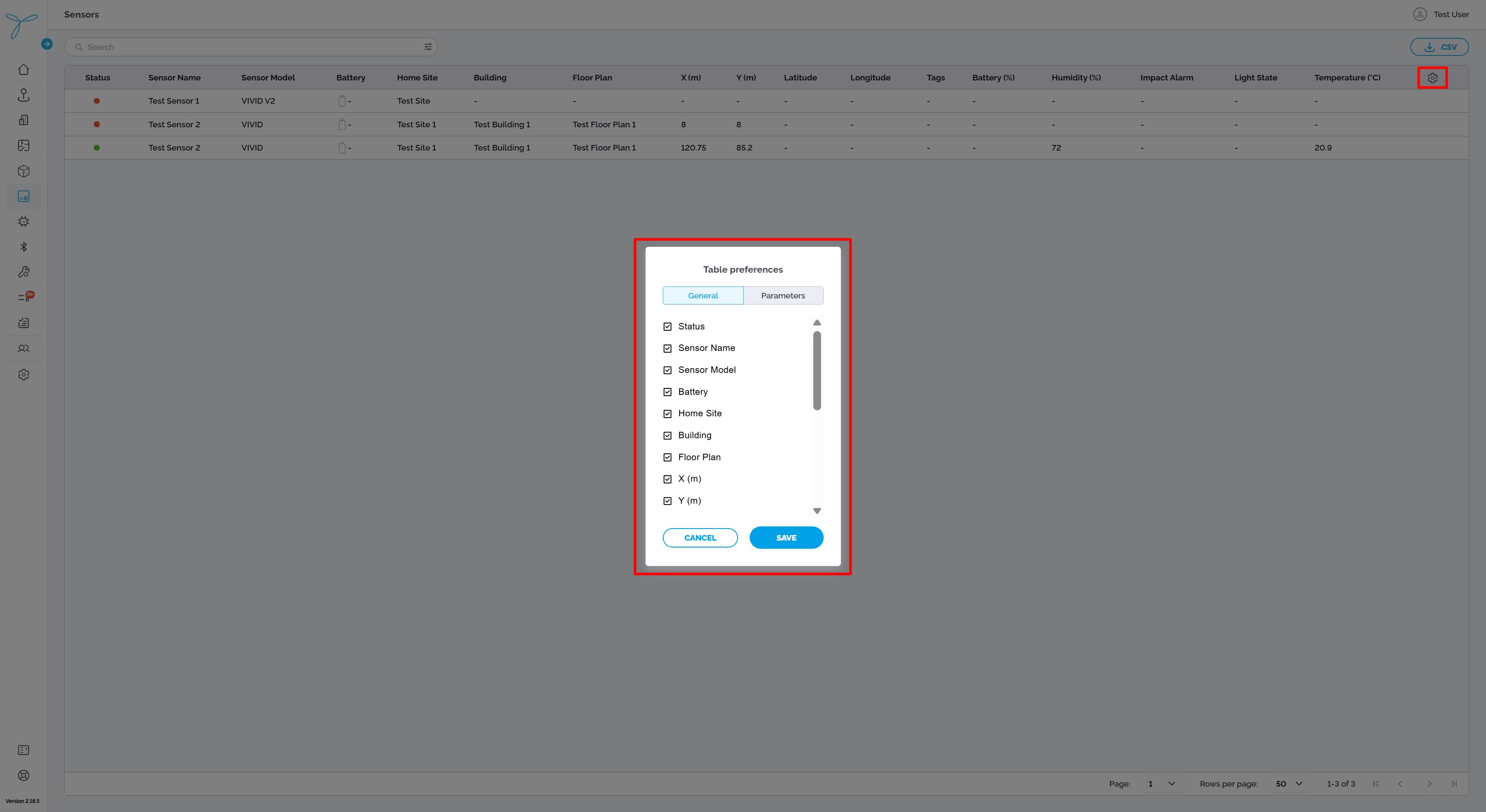
Additional columns may include Sensor ID, Device EUI, Floor Level, Last Activity, Last Modified, Last Modified by, Inactivity Timeout (min), and Create Date.
- Set the search, filters, and columns you need.
- Click .CSV in the upper-right corner of the Sensors page.
- Open the downloaded CSV file in a spreadsheet application, such as Microsoft Excel.
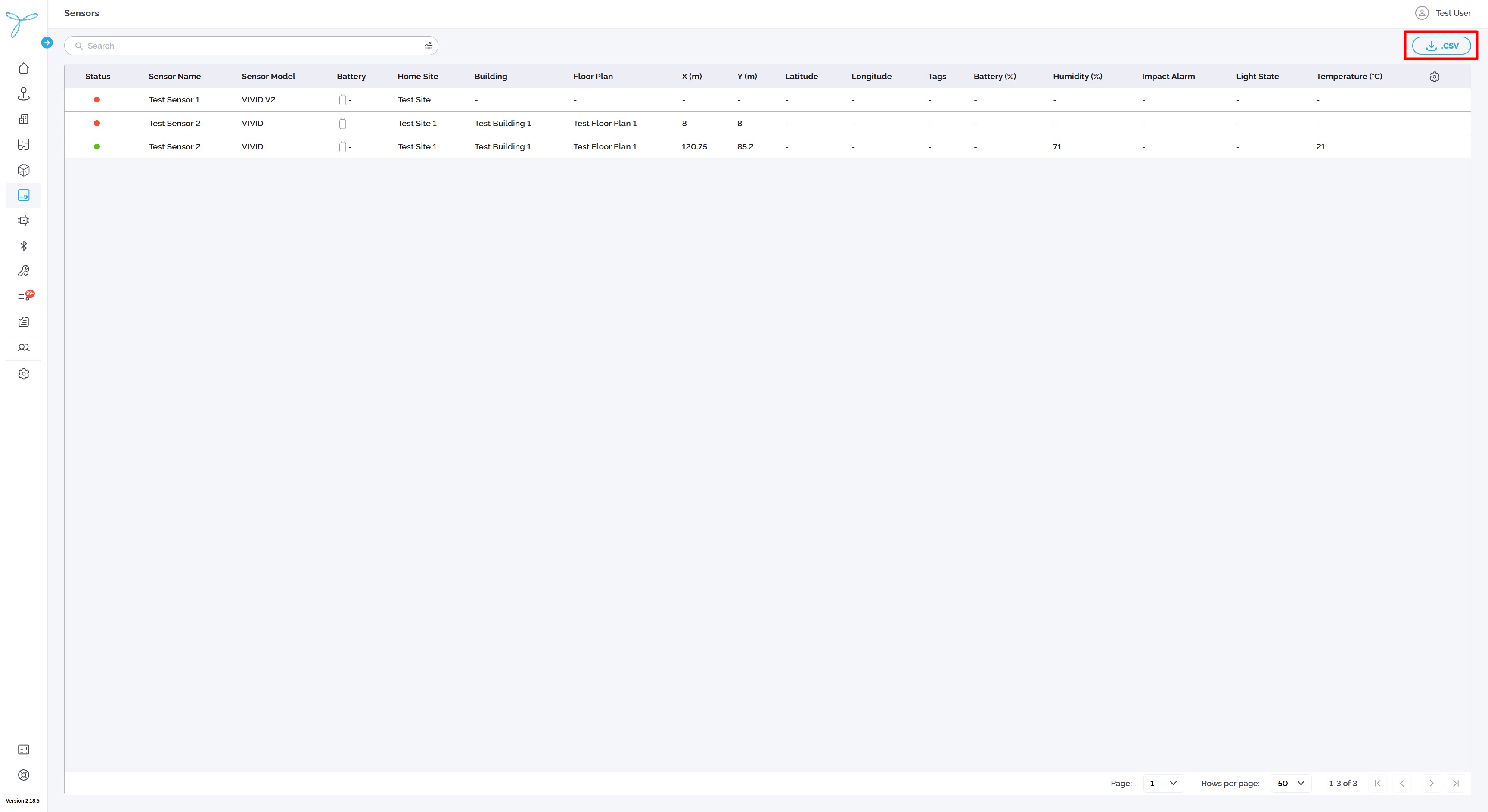
Use the pagination controls at the bottom of the table to move between pages or change Rows per page.
- Sensor Details: Review sensor identification, connectivity, and location information.
- History: Review the latest values and analyze measurements in charts and tables.
- Events: Search and review events associated with a sensor.
- Sensors on Maps: Find sensors on indoor floor plans and outdoor maps.
- Managing Sensors: Add, edit, or delete sensors if your account has the required permissions.
Users with view permissions can inspect accessible sensors. Management actions require the appropriate write or delete permissions.