
Sensor Events
Use the Events tab to find events associated with a selected sensor.
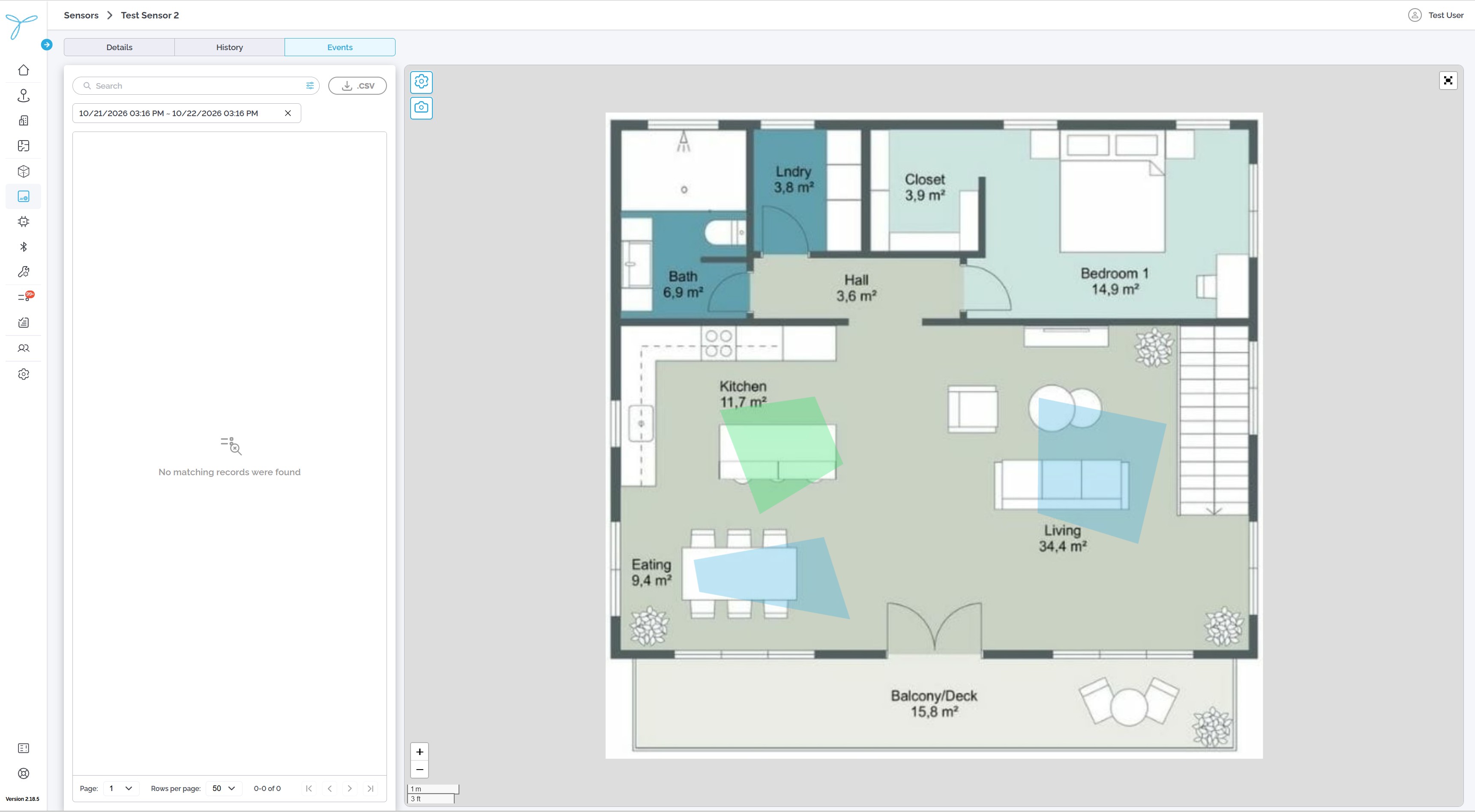
- Select Sensors from the left navigation menu.
- Open the sensor you want to review.
- Select the Events tab.
The tab may display an event count.
- Enter a term in Search to find matching events.
- Use the available filter control to narrow the results.
- Select a date range to review events from a specific period.
- Review the matching entries.
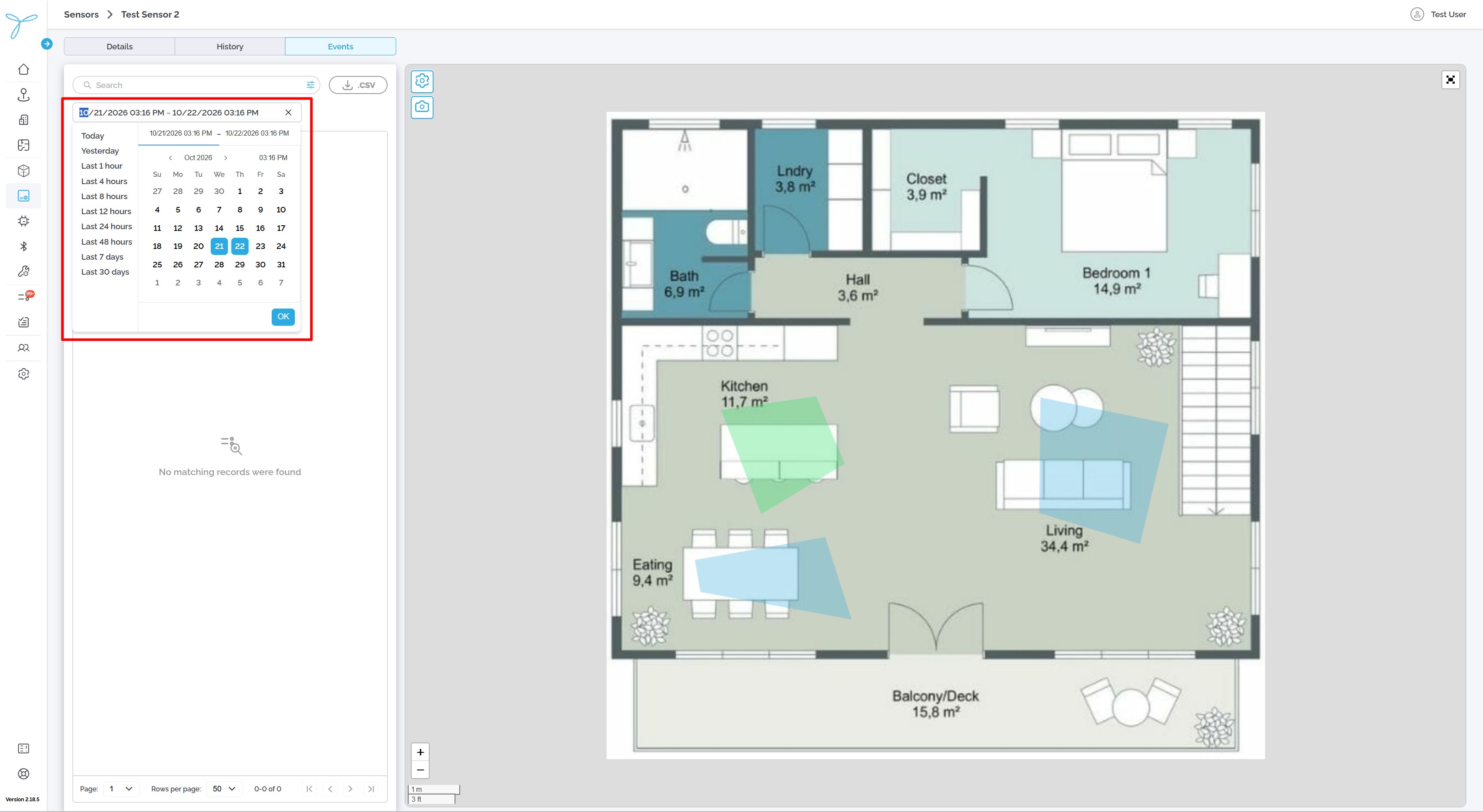
|
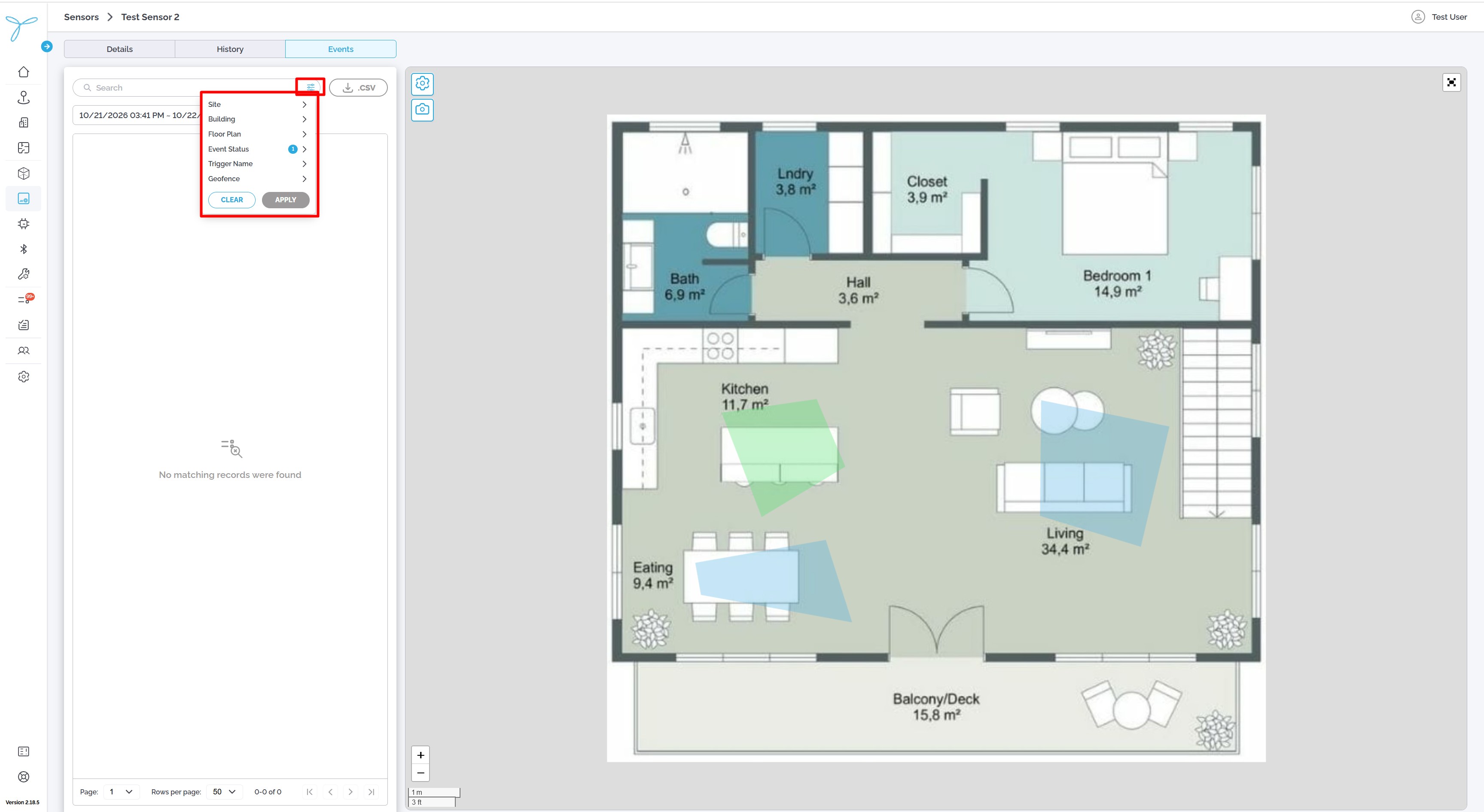
|
If no events match your criteria, LOCUS displays No matching records were found. Clear or adjust the filters to broaden the results.
- Set the search and date range you need.
- Click .CSV to download event data.
- Open the downloaded file in a spreadsheet application.
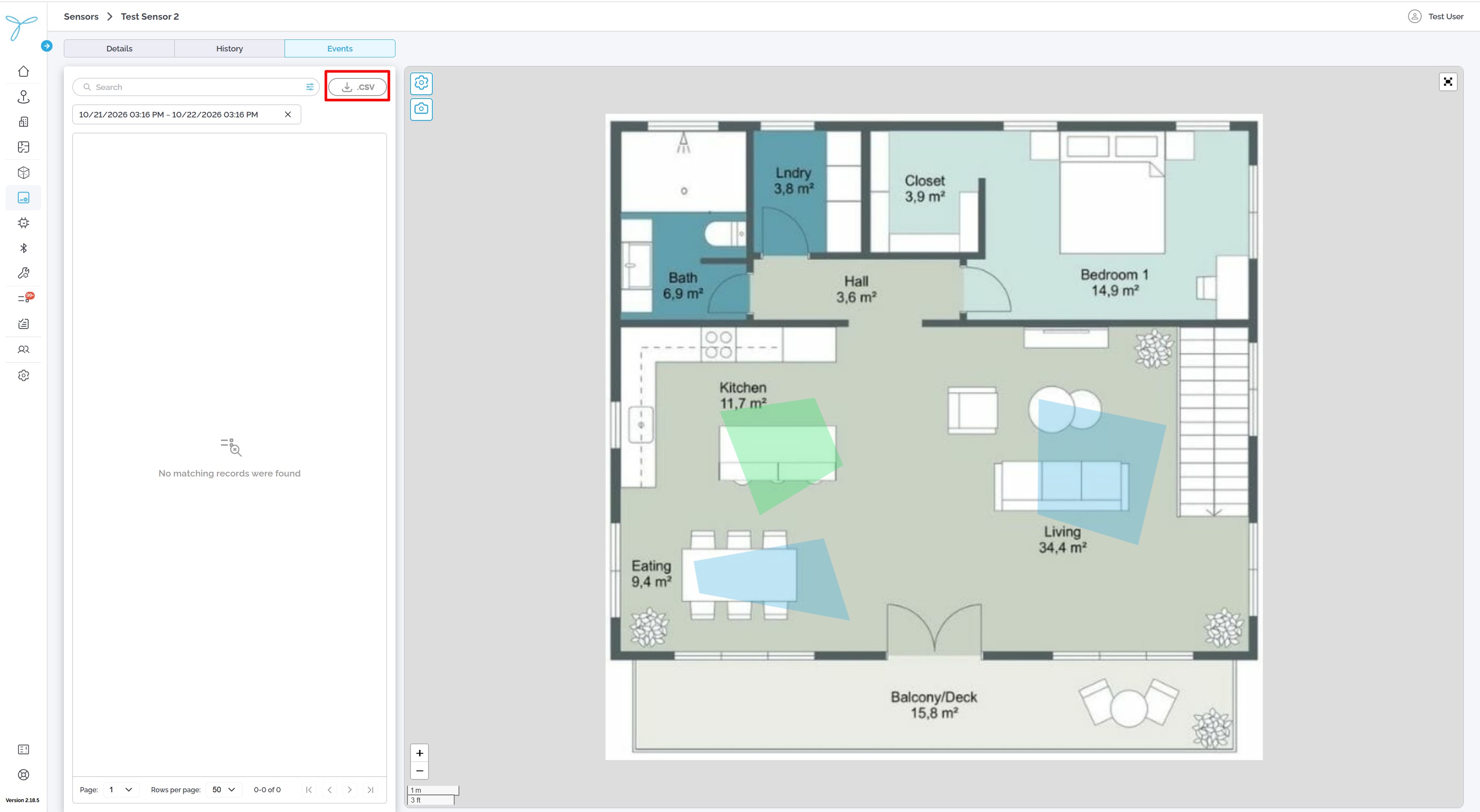
Use the pagination controls at the bottom of the events list to move between pages or change the number of rows shown.
The Events view also includes a map panel when the sensor’s location and your permissions allow it.