
Analyzing Sensor Measurementsc
Use the Time-Series Chart on the History tab to review measurements over time. To open it, go to Sensors, select a sensor, and click History.
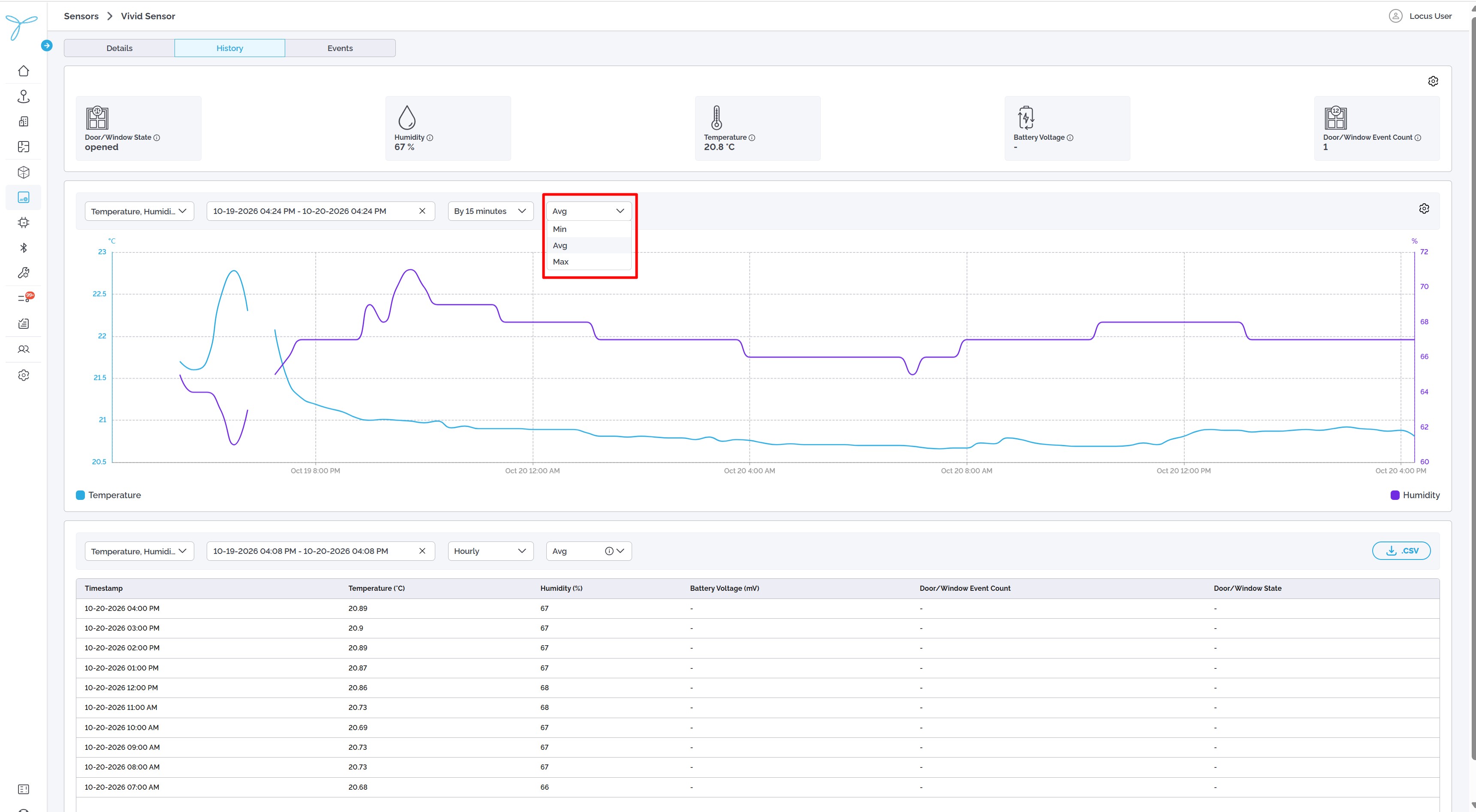
The chart shows how selected measurements changed during a specified period. Its controls are located directly above the graph.
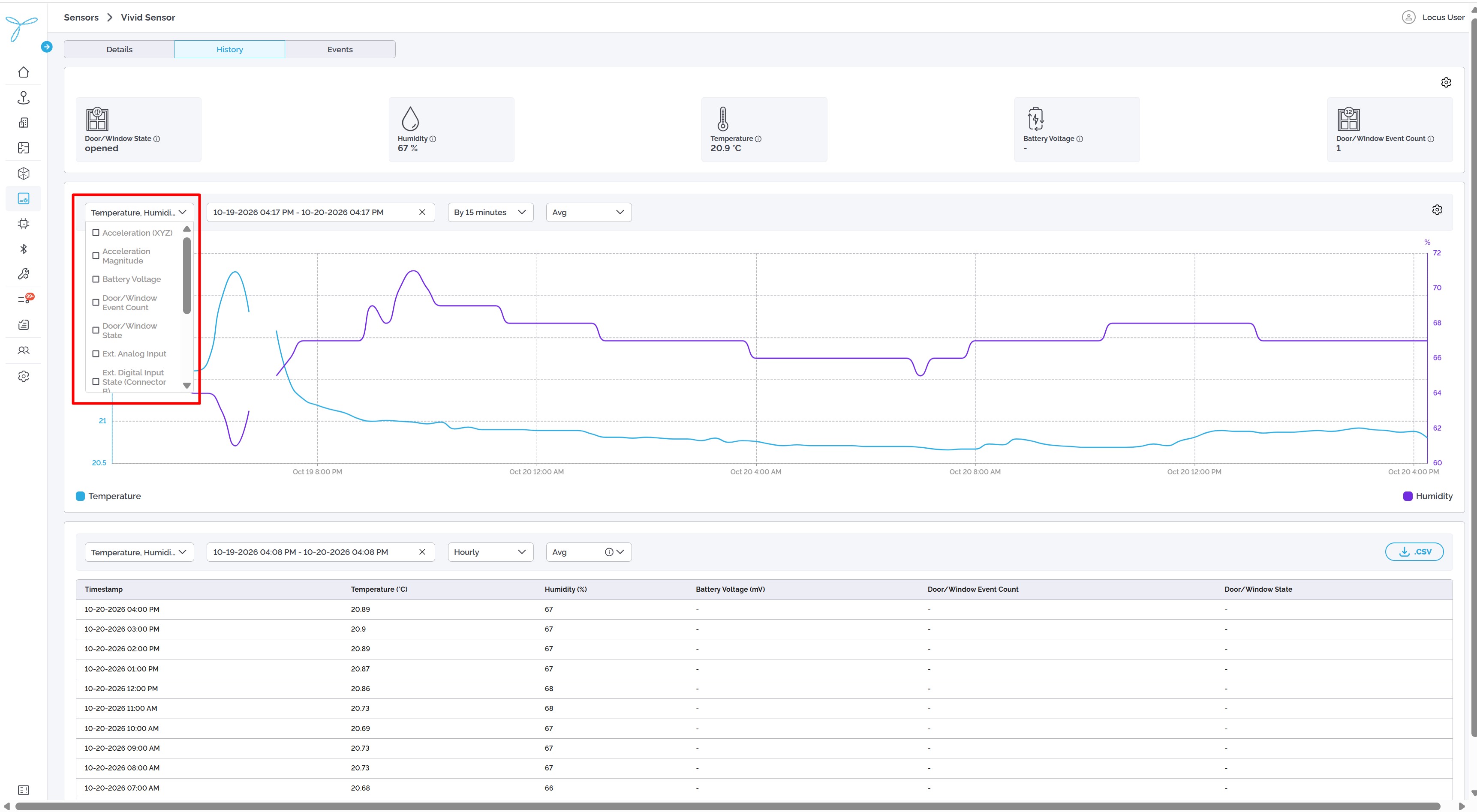
- Select parameters. Click the first dropdown above the chart (for example, Temperature). Select one or two parameters to display. The available options depend on the sensor model.
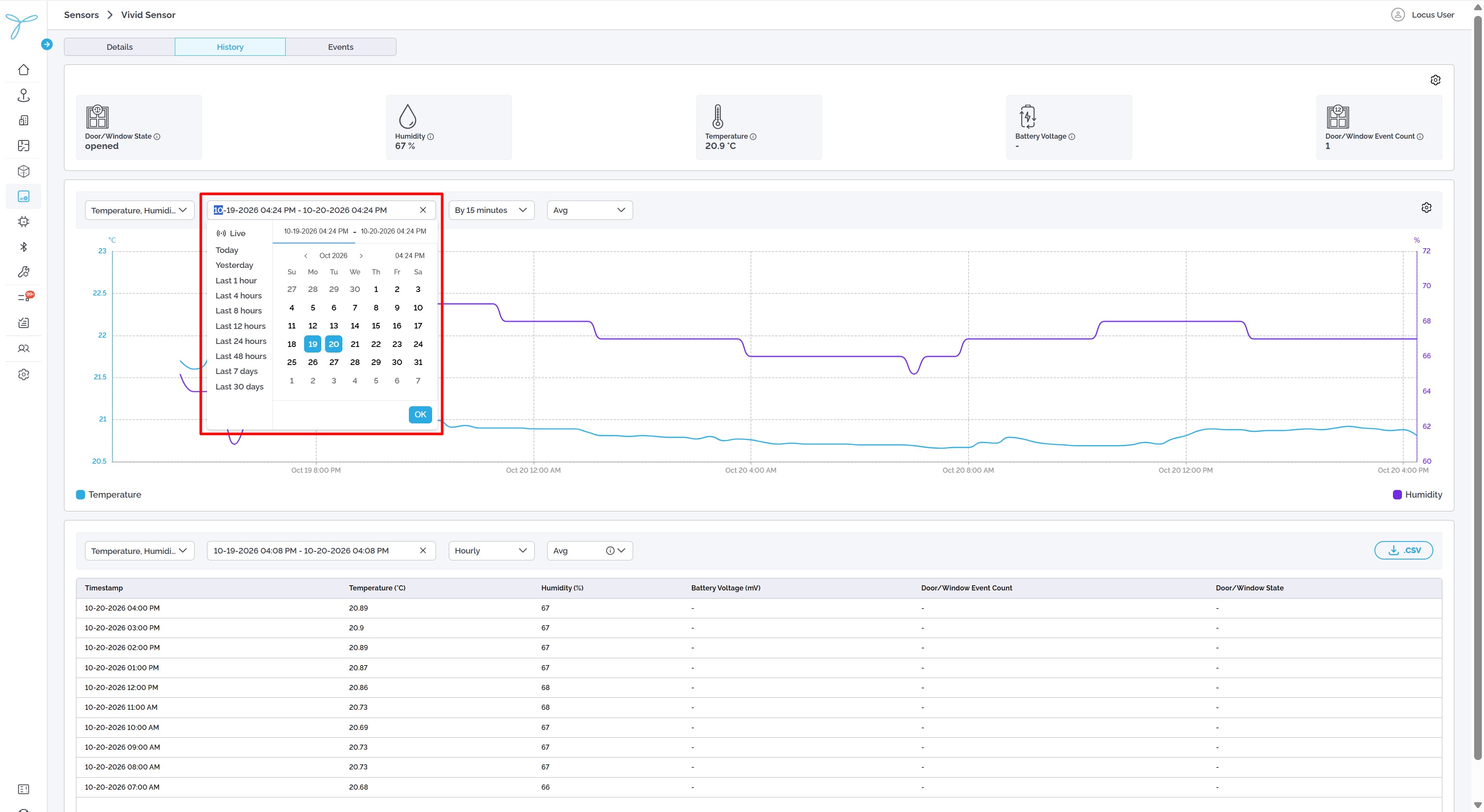
- Set the date range. Click the date-and-time field, choose the start and end of the period, and confirm the selection if prompted. You can select available sensor history up to one year.
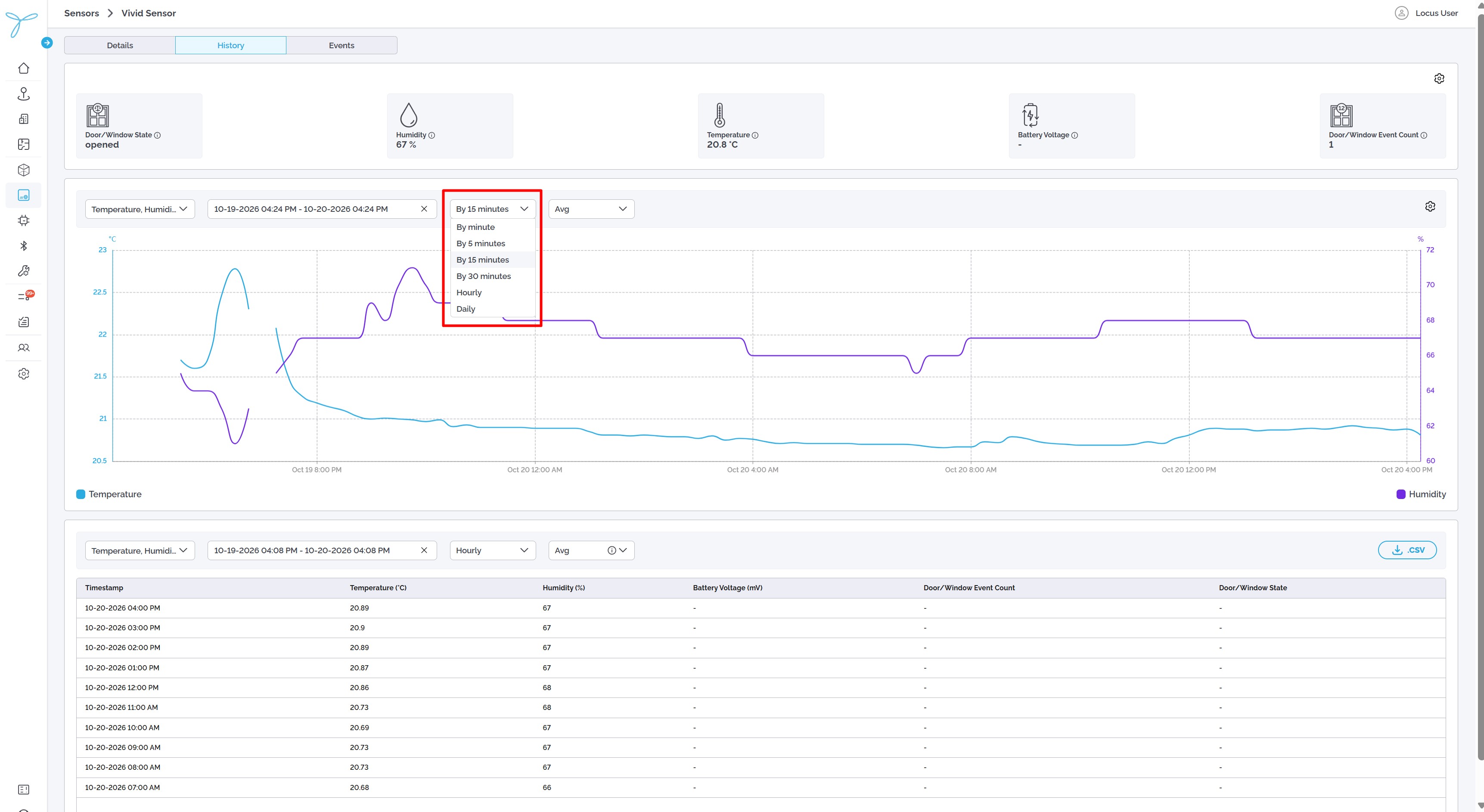
- Choose a time interval. Open the next dropdown (for example, By 15 minutes) and select how readings should be grouped over time.
- Choose an aggregation type. Open the final dropdown (for example, Avg) and select how multiple numerical readings within each interval should be summarized. Avg shows their average.
- Review the chart. It updates based on your selections; no page reload is needed.
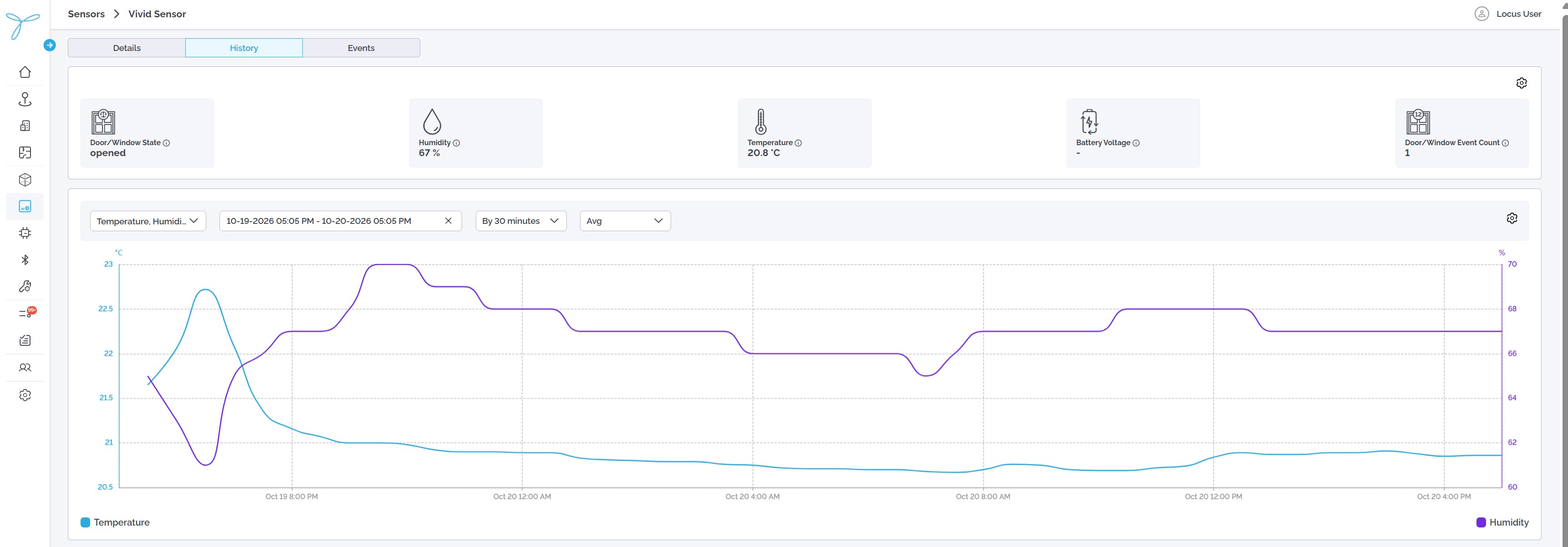
Reading the chart: The bottom axis shows time. The vertical axis shows the measurement values and units. Hover over a plotted point to inspect its reading and timestamp. Gaps indicate periods without valid measurements.
Comparing two parameters: Select two parameters in step 1. Both appear on the same chart, with separate vertical axes when needed—for example, Temperature (°C) on the left and Humidity (%) on the right. The legend below the chart identifies each parameter. Both use the same date range, time interval, and aggregation settings.
|
|
|
| Time-Series Chart 1 | Time-Series Chart 2 |
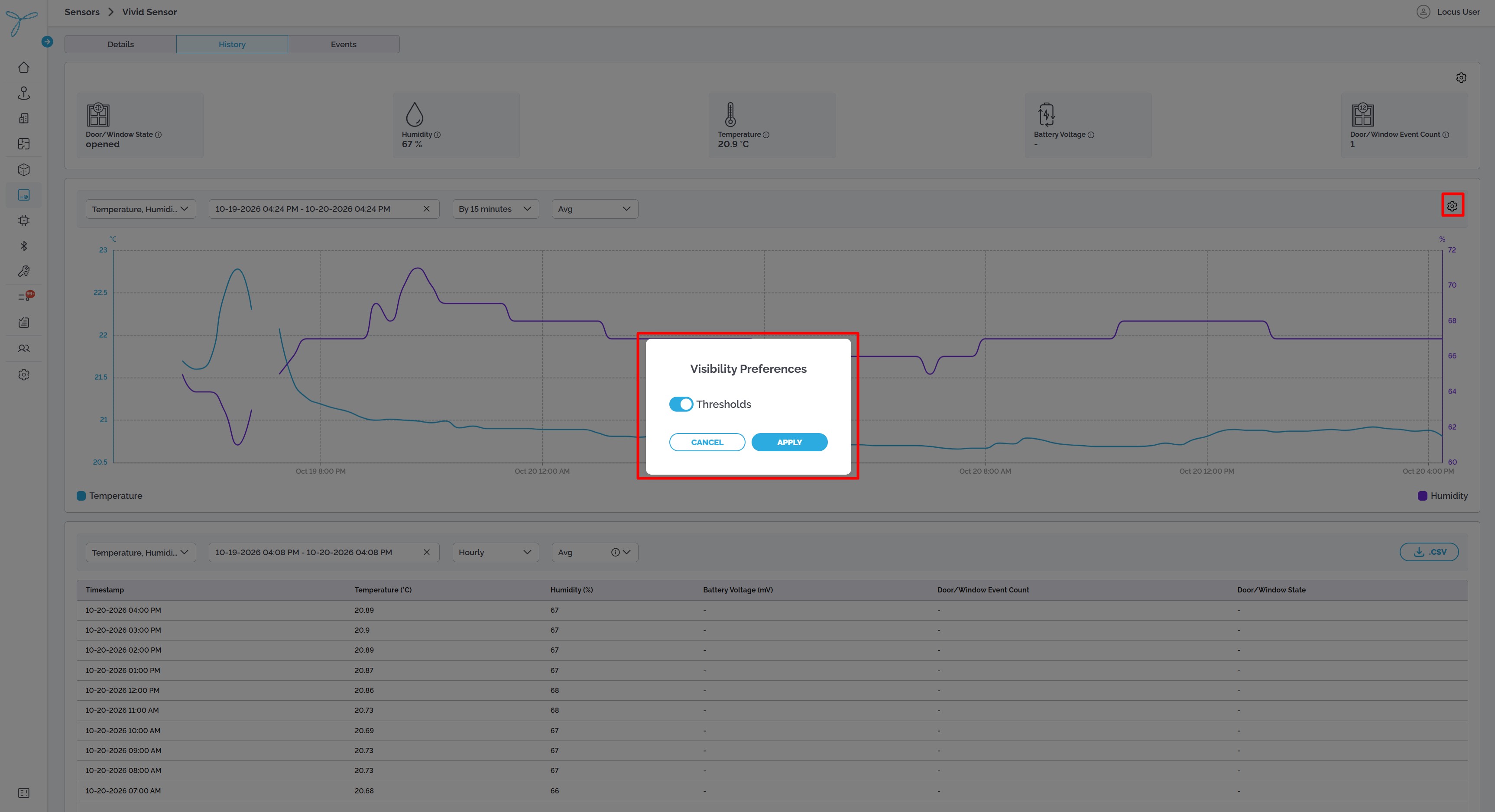
- Click the Settings (gear) icon in the upper-right corner of the chart.
- Adjust the available display options, such as showing configured threshold lines or Connect points across gaps.
- Close or apply the settings as indicated by the menu.
Connect points across gaps draws a line between available measurements even when readings are missing. It does not add or restore missing data. Threshold lines are shown only for parameters with configured thresholds. A refresh interval control may also be available in the chart settings.
For missing or incomplete readings, see If measurements are missing.
See also: Sensor History: Overview and Summary and Viewing and Exporting Historical Data.