
KONA Link Login
KONA Link provides a web interface for local setup and management of TEKTELIC KONA gateways. Each gateway includes its own unique login credentials and can be accessed through your web browser when connected to the same local network.
To log in, you will need:
- A computer connected to the same LAN as the gateway (through the same router) — or — a direct Ethernet connection between your computer and the gateway
- The Basic Web Password printed on the KONA Test Summary Certificate included in your gateway box
This password is unique to each gateway and required for the first login.
- Connect the gateway to your computer or local router using an Ethernet cable.
- Confirm that your computer and the gateway are on the same network (for example, both connected to the same router).
You can access KONA Link using either the gateway’s hostname or its IP address.
In your browser, enter the following URL format:
http://kona-<GW variant>-<last 6 digits of GW ID>.local/
For example:
http://kona-micro-0011ab.local/
This method works only when your PC is on the same LAN as the gateway or directly connected to it.
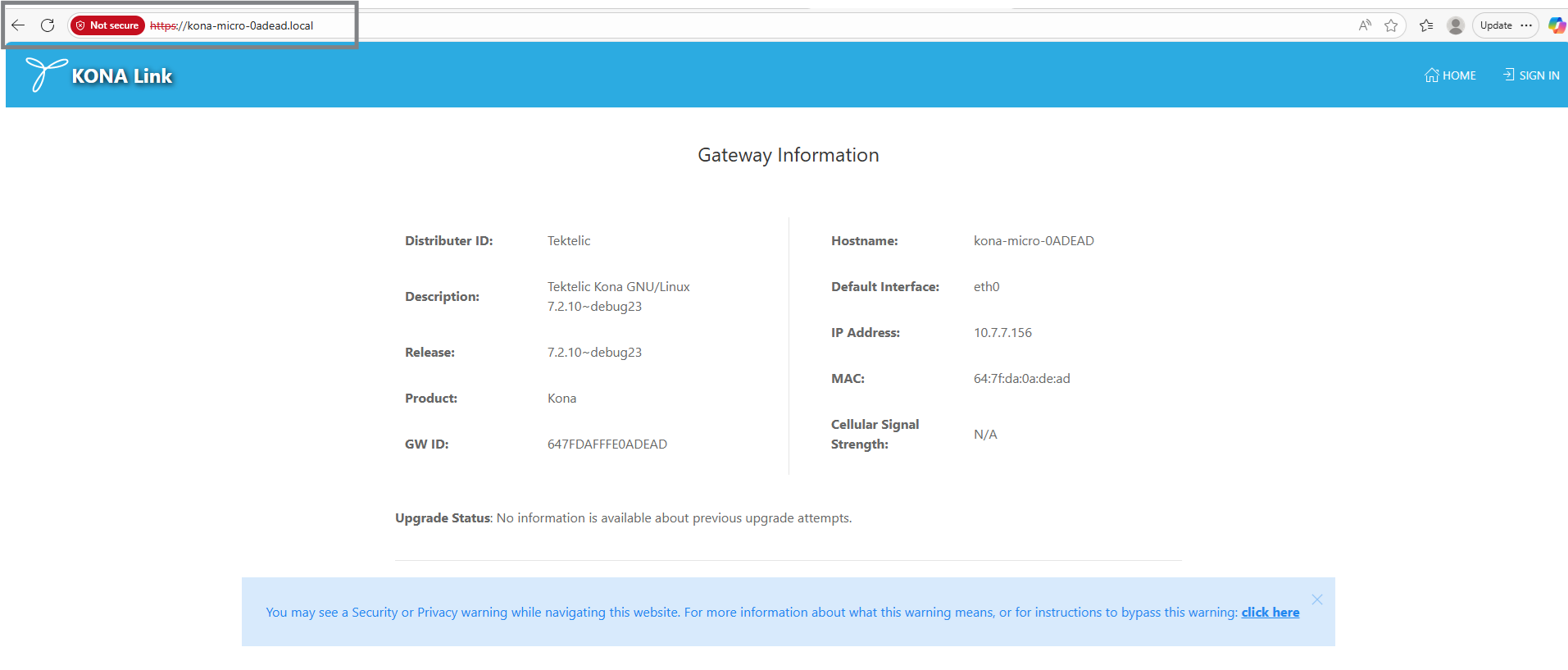
If you know the gateway’s IP address (for example, from your router’s device list), you can also connect using:
http://<GW IP address>/
Example:
http://192.0.2.111/
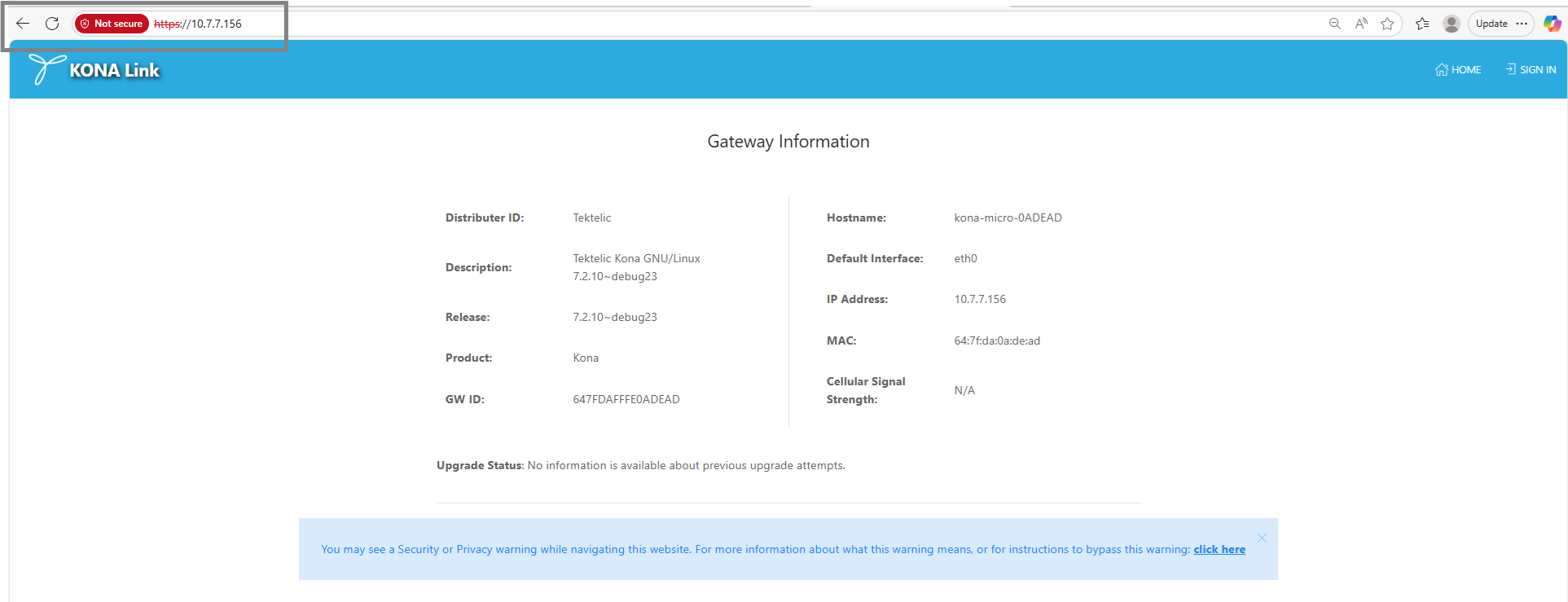
When the KONA Link login page appears:
- Enter the Basic Web Password from your KONA Test Summary Certificate.
- Click Sign In.

Note: The gateway uses a self-signed SSL certificate for secure access. Your browser may display a security warning—this is expected. You can safely accept the warning and proceed to the KONA Link page.
After logging in, the KONA Link dashboard displays gateway information such as model, ID, and current status. From here you can use setup wizards or configure network settings.
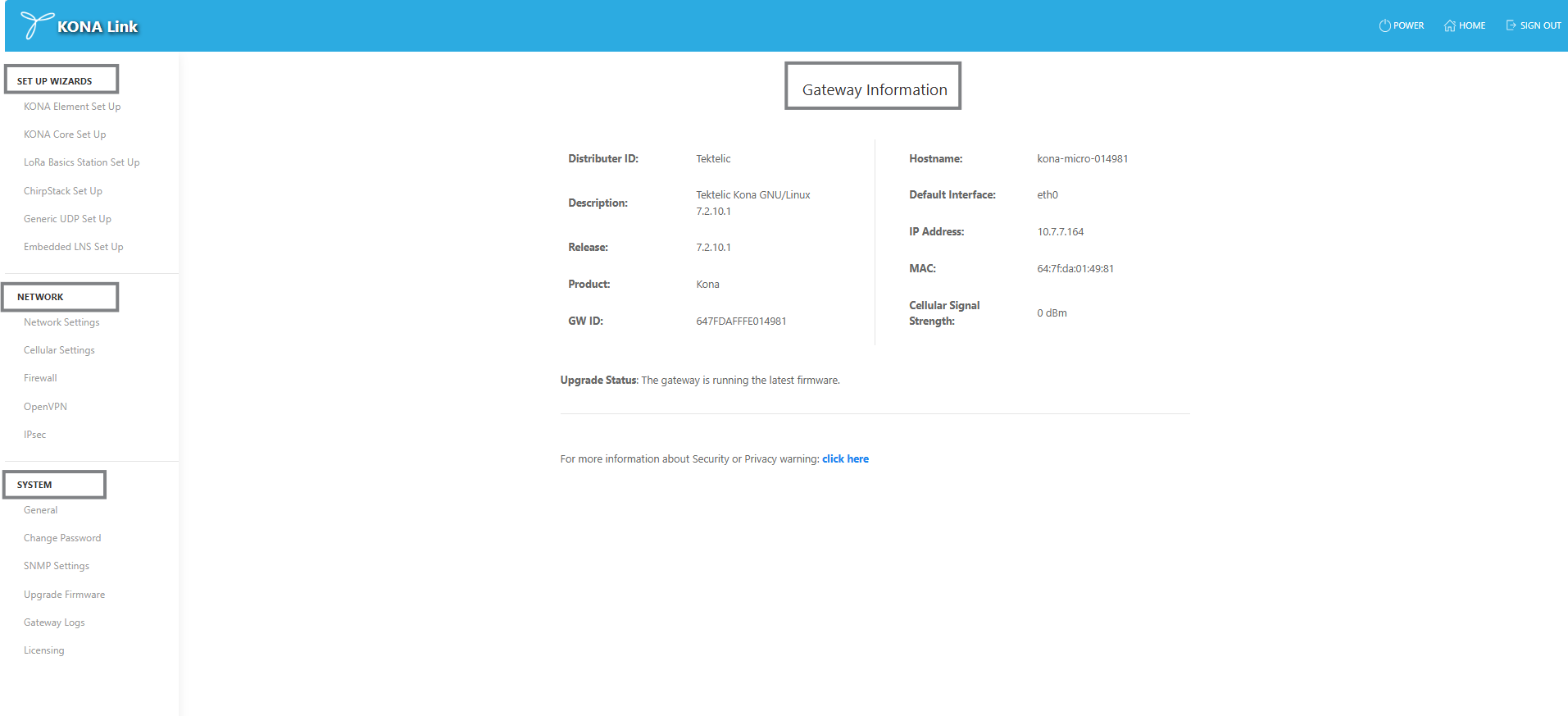
For more detailed information, see the KONA Link User Guide, section 2.1 Access KONA Link.