
Configure 802.1X EAP-TLS Authentication
This article explains how to configure a TEKTELIC KONA gateway to authenticate to a wired Ethernet network that uses IEEE 802.1X port-based access control. Configuration is completed through the KONA Link web UI.
The currently supported authentication method is EAP-TLS. EAP-TLS uses a client certificate, matching private key, and a CA certificate or trust chain to authenticate the gateway to the customer’s RADIUS-backed network.
When 802.1X is enabled, the gateway does not treat Ethernet as a usable uplink until authentication succeeds. If the gateway has cellular connectivity, it may use cellular while Ethernet is unauthenticated, subject to its configured interface-priority policy.
- TEKTELIC KONA gateways with an Ethernet interface.
- Gateway BSP 7.2.16 or later, where 802.1X support is included.
- KONA Link version supplied with the supported BSP.
- EAP-TLS only. Other EAP methods are not customer-supported unless explicitly identified as supported in the applicable BSP release notes.
-
The gateway is running a compatible BSP version.
-
You can log in to KONA Link
-
The customer network administrator has configured the Ethernet switch port for 802.1X authentication and has confirmed the RADIUS configuration.
-
You have the EAP-TLS credentials issued for this gateway:
- CA certificate or CA trust chain used to validate the RADIUS server certificate.
- Client certificate for the gateway.
- Private key matching the client certificate.
- Private-key password, if the private key is encrypted.
- EAP identity and, if required by the customer network, the server domain-match value.
-
The gateway has an alternate management path before you enable 802.1X. Use cellular, a separately authorized Ethernet port, or local access. Enabling 802.1X with incomplete credentials can interrupt Ethernet access to KONA Link.
-
The switch port connected to the gateway is configured to block normal traffic until successful 802.1X authentication.
- Obtain the certificate and identity values from the customer network administrator. Confirm that the client certificate and private key are a matching pair and that the CA certificate trusts the RADIUS server certificate.
- Connect to the gateway using the alternate management path and log in to KONA Link.
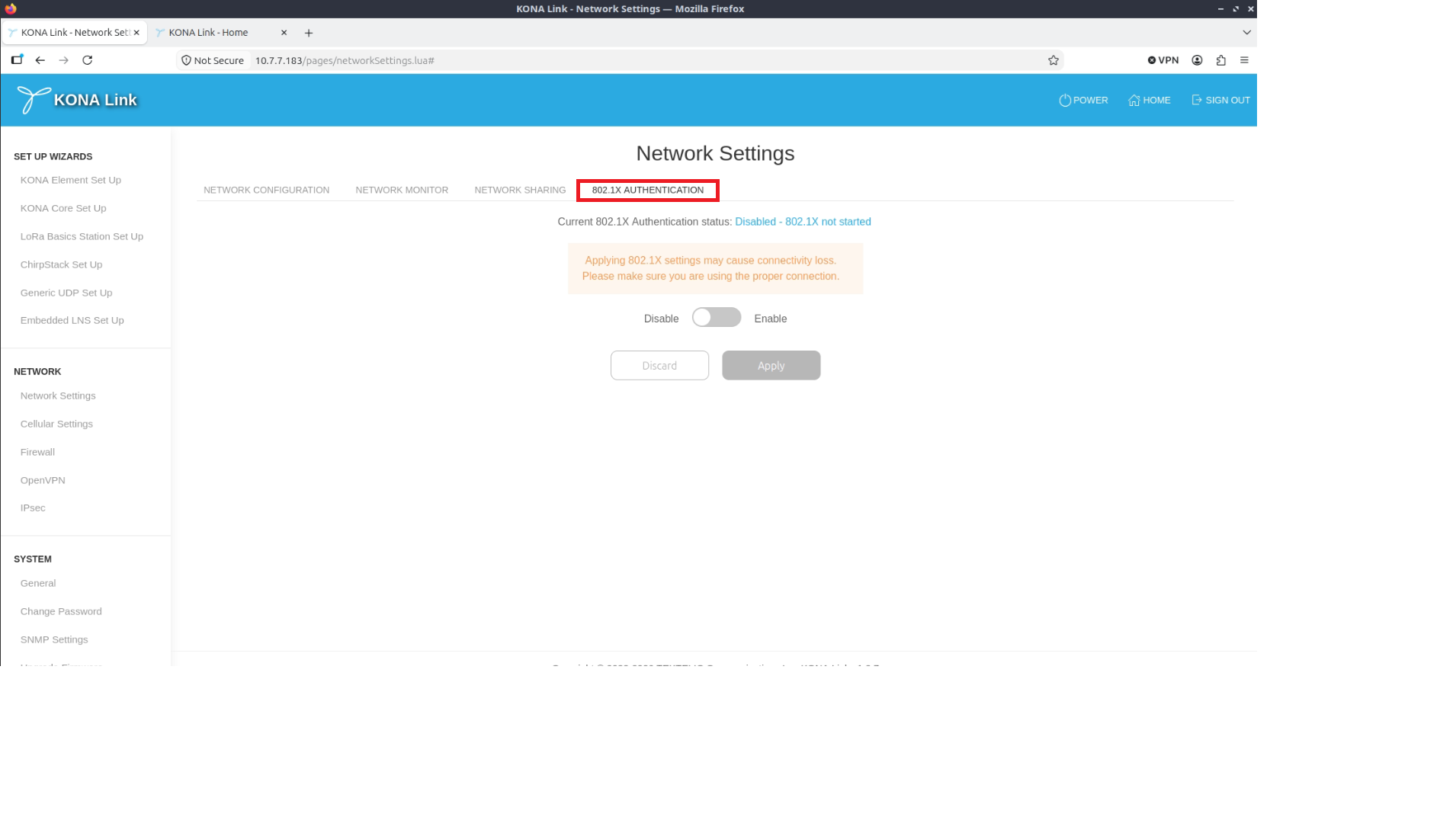
- Open the Network section and select 802.1X Authentication.
-
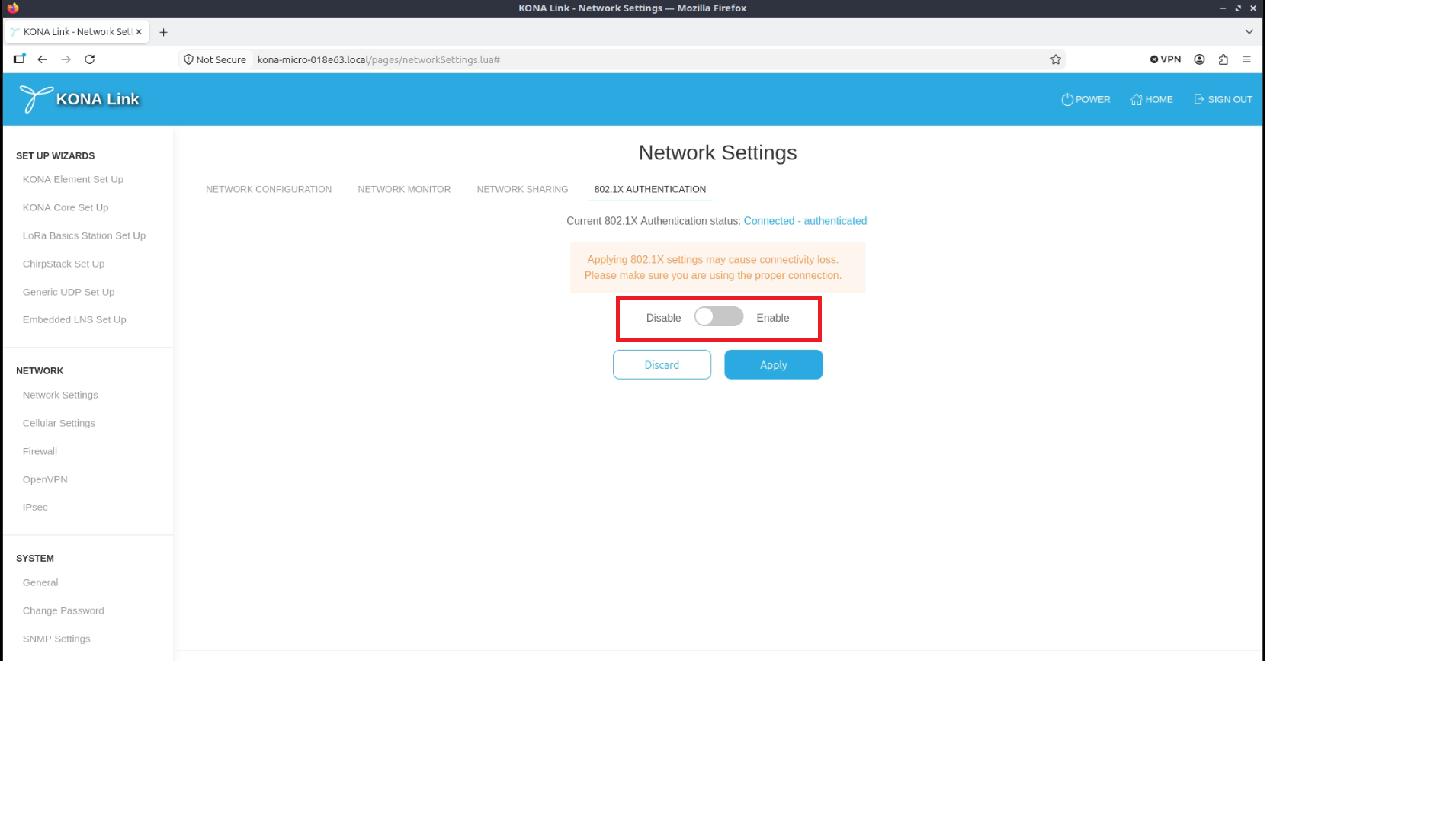
Enable 802.1X Authentication.
-
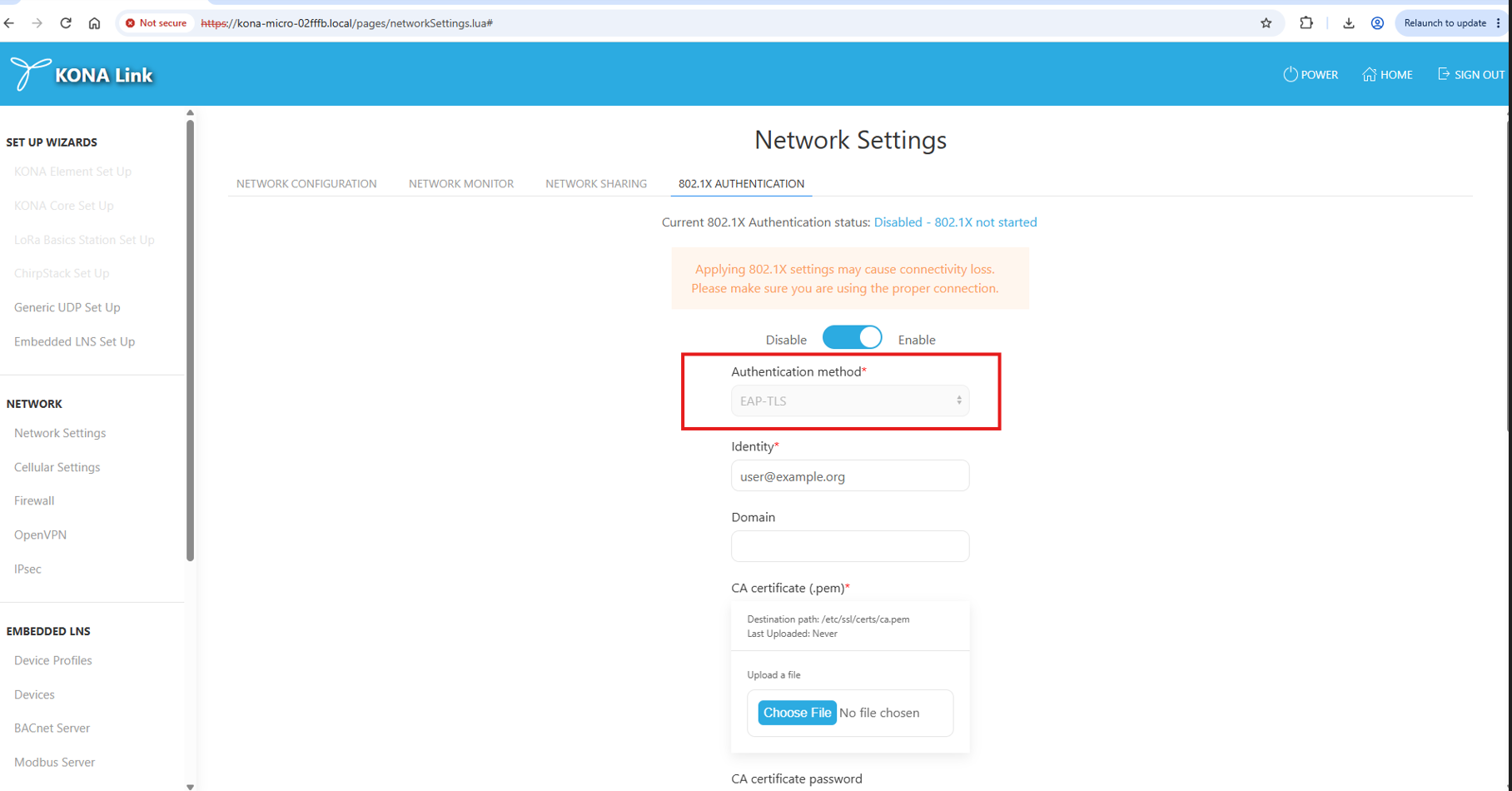
Select EAP-TLS as the authentication method.
Do not select another EAP method unless the applicable TEKTELIC BSP release documentation explicitly identifies it as supported.
-
Enter the Identity supplied by the customer network administrator. Enter the Domain Match value if the RADIUS deployment requires the server certificate name to be matched.
-
Upload or select the certificate material:
-
CA Certificate: the CA certificate or trust chain used to validate the RADIUS server.
-
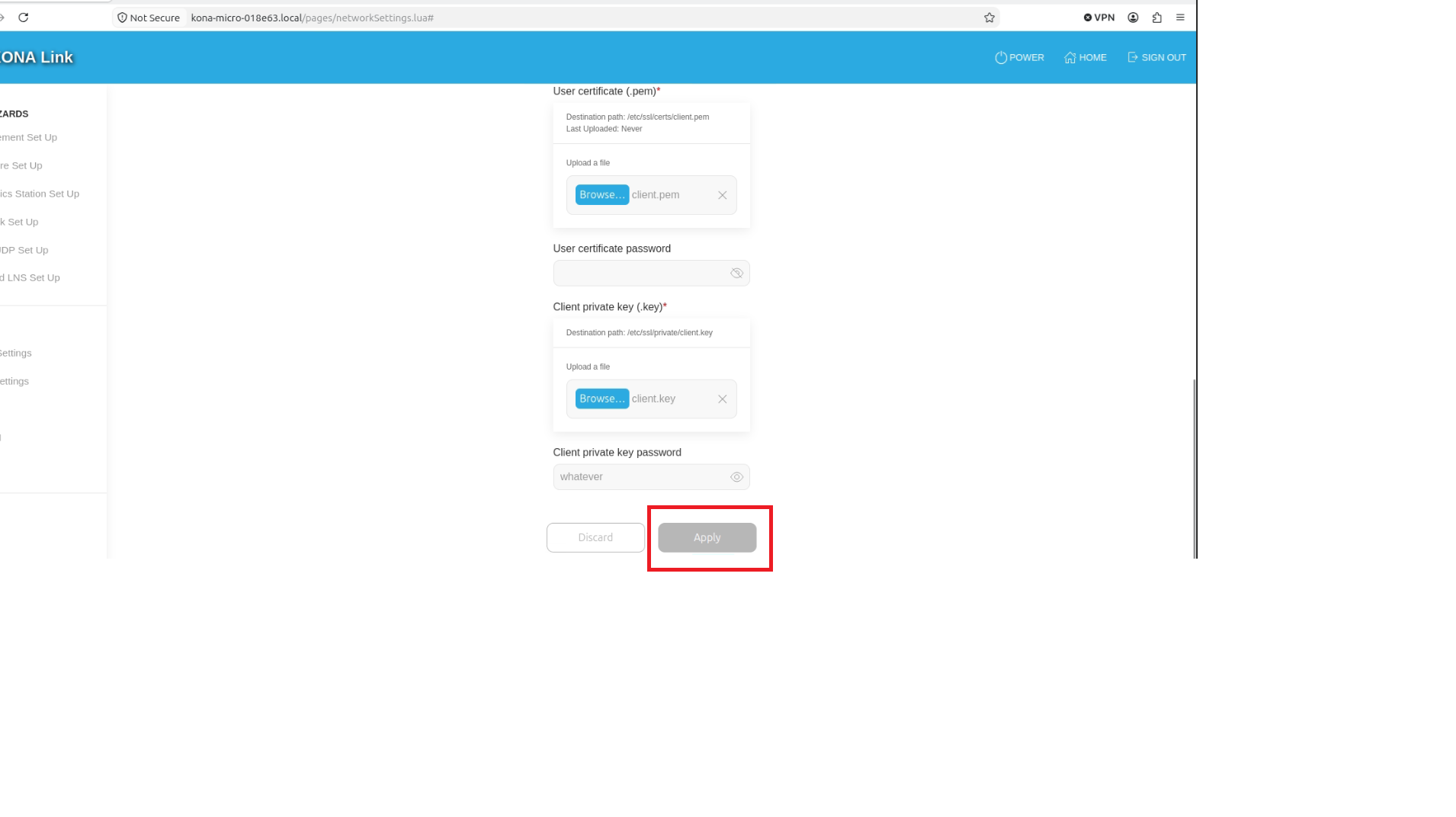
Client Certificate: the certificate issued to this gateway.
-
Private Key: the private key that matches the client certificate.
-
Private Key Password: enter this only when the private key is encrypted.
-
-
Review the selected files and entered values. Verify that the client certificate, private key, and CA certificate are present before saving. Do not share or record the private-key password in notes, screenshots, or support tickets.
-
Select Save or Apply to store the configuration and enable authentication. The gateway starts 802.1X authentication when the Ethernet link is available.
-
Connect the gateway Ethernet interface to the configured 802.1X switch port, or reconnect the cable if it was already connected. Allow time for the switch and RADIUS server to complete authentication.
-
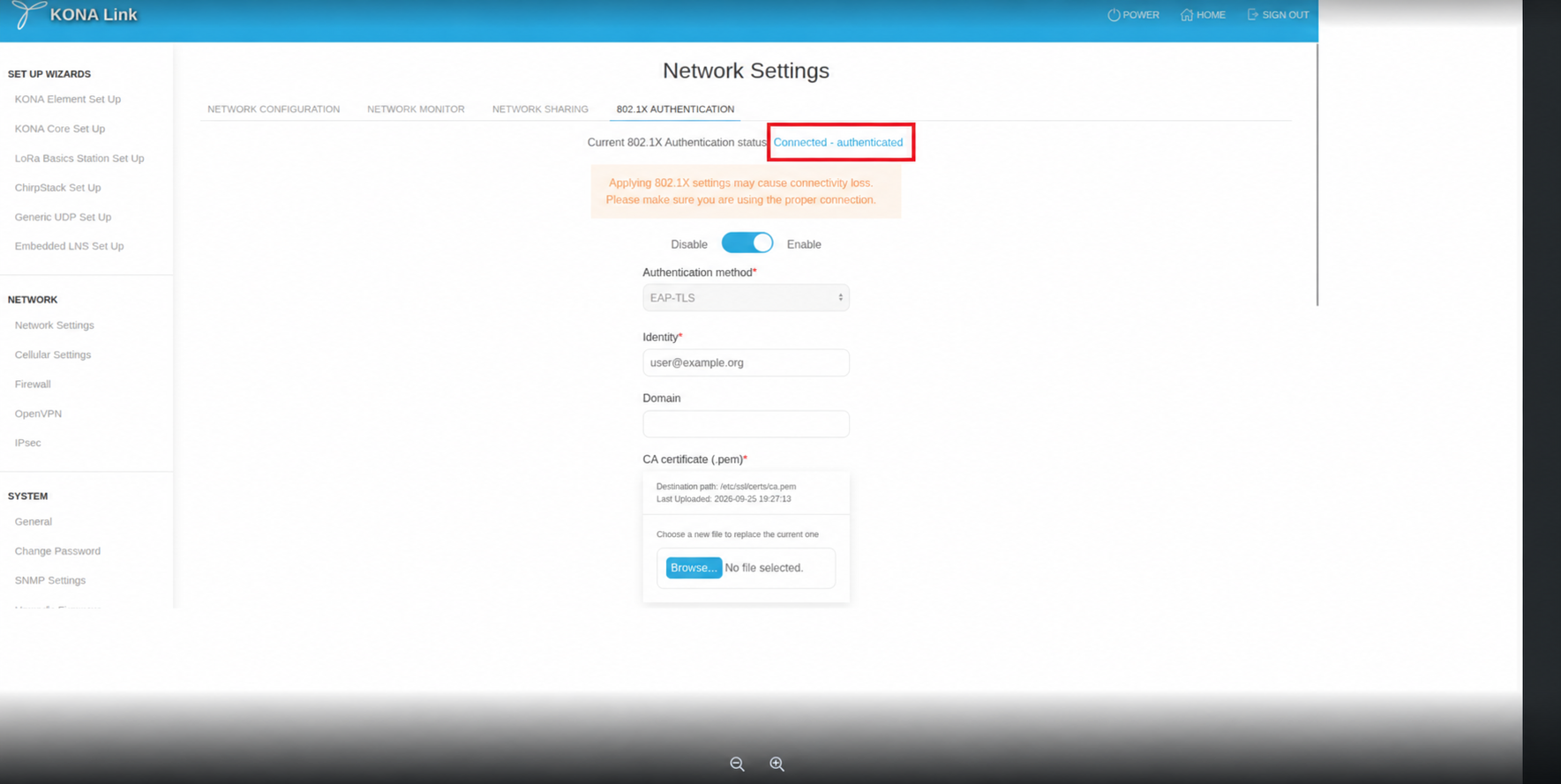
Return to the 802.1X Authentication page and verify that the status is Connected and the authentication state is Authenticated. The error field should be empty.
- Confirm with the network administrator that the RADIUS server logged an Access-Accept result, then confirm that the gateway can reach its required services over Ethernet.
- If the gateway uses cellular as a backup path, verify the expected interface-priority behavior after Ethernet authentication succeeds.
- Ensure that you have a management path to the gateway.
- In KONA Link, open Network > 802.1X Authentication.
- Disable 802.1X Authentication, then select Save or Apply.
- Verify that the status is Disabled and that Ethernet now follows the gateway’s normal, non-802.1X network configuration.
Use the 802.1X status and error information in KONA Link to identify the issue.
| Status or error | Meaning | Recommended action |
|---|---|---|
| Authentication in progress | The gateway is attempting 802.1X authentication. | Wait for the RADIUS transaction to complete. Confirm that the Ethernet link is connected and the switch port is configured for 802.1X. |
| Authentication failed | The RADIUS server or supplicant rejected the authentication attempt. | Ask the network administrator to check the RADIUS and switch logs. Verify the identity, client certificate, private key, and CA certificate. |
| 802.1X not started | No authentication attempt is active. | Check that 802.1X is enabled and that the Ethernet cable and switch port are connected and active. |
| Ethernet link down | The gateway does not detect an Ethernet carrier. | Check the cable, the gateway Ethernet port, and the switch port. |
| CA certificate missing or unreadable | The gateway cannot validate the RADIUS server certificate. | Upload or select the correct CA certificate or trust chain. |
| Client certificate missing or unreadable | The client certificate is not available to the gateway. | Upload or select the gateway client certificate again. |
| Private key missing or unreadable | The client private key is not available or cannot be used. | Upload the matching private key and enter its password if it is encrypted. |
| no-secrets | Required credentials were unavailable, or authentication retries were exhausted. | Verify all certificate selections, identity values, and the private-key password. Reconnect Ethernet after correcting the configuration. |
| supplicant-timeout | Authentication did not complete in time. | Confirm that the RADIUS server is reachable from the switch and review the switch and RADIUS logs. |
| supplicant-config-failed or config-failed | The gateway could not create or apply the 802.1X configuration. | Check that EAP-TLS is selected and all required certificate material is present and readable. |
If authentication fails, Ethernet remains unauthorized. Use the alternate management path established in the prerequisites to correct the configuration.
- KONA Link User Guide